Quick answer: inspect the exact URL in Google Search Console
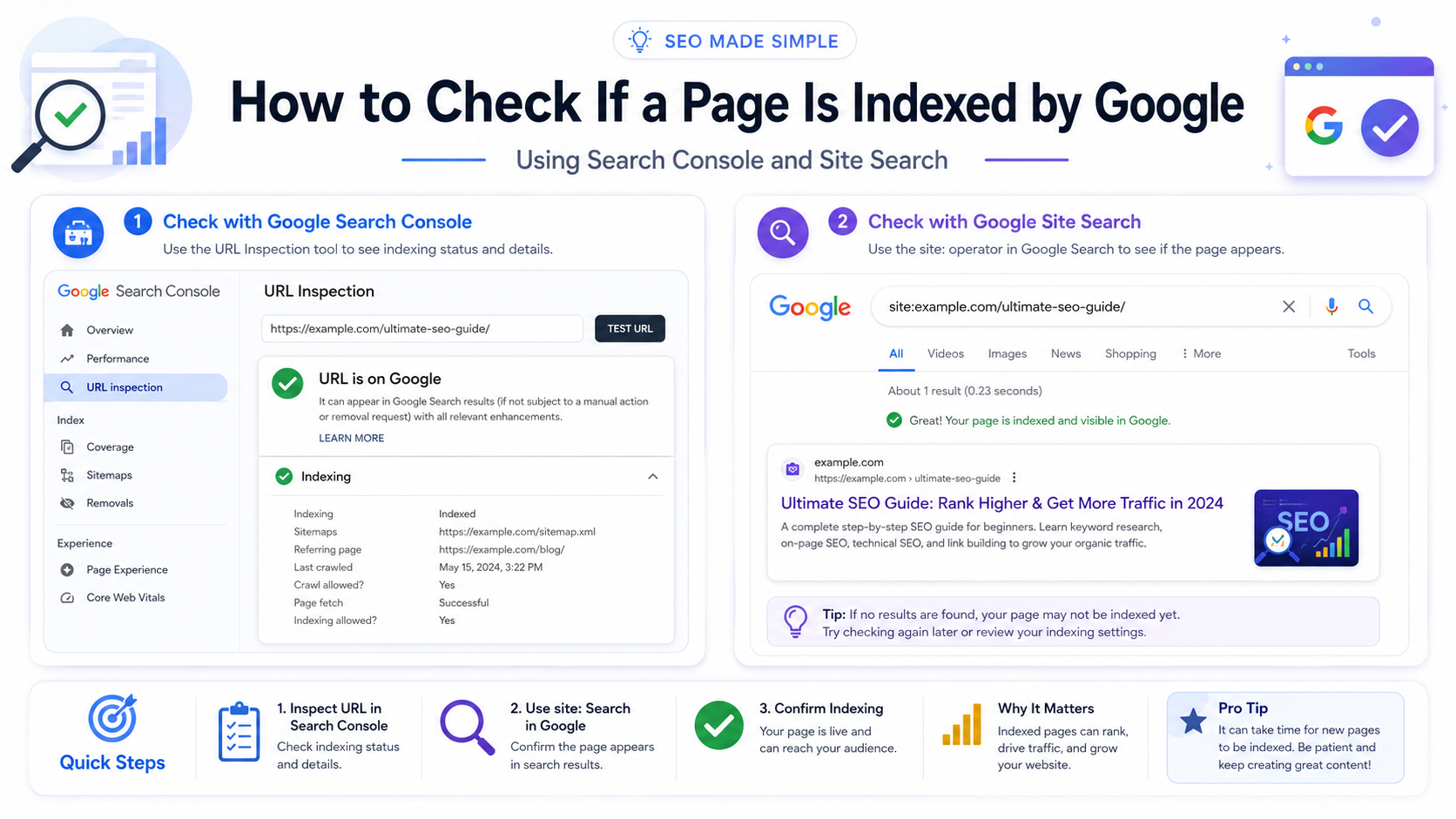
The most reliable way to check if a page is indexed by Google is to use the URL Inspection tool inside Google Search Console. Paste the exact page URL into the inspection bar. If Search Console says “URL is on Google”, the page is indexed. If it says “URL is not on Google”, the page is not indexed or Google has selected another URL as the canonical version.
For a fast public check, search Google with the site: operator. Example: site:example.com/page-url/. If the exact page appears, it is likely indexed. If it does not appear, confirm the result in Search Console because the site: operator is useful, but not guaranteed to show every indexed URL.
| Question | Fast Answer | Best Tool |
|---|---|---|
| Is this exact page indexed? | Use URL Inspection and look for “URL is on Google”. | Google Search Console |
| How many pages from my site are indexed? | Use the Page Indexing report and sitemap filters. | Search Console → Indexing → Pages |
| Can I check quickly without Search Console? | Run a site: search for the exact URL. | Google Search |
| Why is my URL missing? | Check noindex, robots.txt, canonicals, status codes, content quality and internal links. | Search Console + SEO crawler |
Indexing vs ranking: do not confuse the two
Indexing means Google has stored a URL in its search index. Ranking means Google shows that URL for a particular search query and position. A page can be indexed but not rank well. A page can also rank for its brand or exact title but fail to rank for competitive keywords.
Crawled
Googlebot requested the URL and received a response from your server.
Indexed
Google selected the URL or a canonical version for its searchable index.
Ranking
The indexed URL appears for search queries based on relevance, quality and competition.
This distinction matters because many site owners inspect a page, see it is indexed, and assume it should instantly generate traffic. Indexing only makes the page eligible. To rank, the page still needs strong content, search intent matching, internal links, technical health, topical authority and enough trust signals.
Why checking Google indexing matters
If Google does not index a page, that page cannot normally appear in organic search results. This makes indexing checks one of the first steps in every SEO audit, especially after publishing new content, changing URL structures, migrating a domain or seeing a traffic drop.
Indexing checks are also important for large websites. A site with thousands or millions of URLs needs to know which URLs are indexed, which are excluded, which are blocked, and which are wasting crawl budget. Without this, you may keep publishing pages that Google discovers but does not index.
| Situation | Why Check Indexing? | What to Look For |
|---|---|---|
| New article published | Confirm Google discovered and indexed it. | URL Inspection, sitemap inclusion, internal links. |
| Traffic suddenly dropped | Check whether pages were removed, canonicalized or blocked. | Noindex, robots.txt, redirects, server errors. |
| Website migration | Confirm new URLs replaced old URLs correctly. | 301 redirects, canonical tags, indexed URL counts. |
| Programmatic SEO site | Find templates Google crawls but refuses to index. | Duplicate pages, thin pages, crawl traps. |
| Backlink or directory project | Verify important landing pages and public listings are actually visible. | site: checks, GSC statuses, logs and sitemap status. |
7 methods to check if a page is indexed by Google
A strong SEO check uses layered verification. Start with Google’s own Search Console data, then use public search checks and technical diagnostics to confirm the result.
1. Google Search Console URL Inspection Tool
URL Inspection is the best single-page indexing check. It shows Google’s indexed information for the URL and also lets you test whether the live page can be indexed now.
- Open Google Search Console.
- Select the correct verified property.
- Paste the full page URL into the top inspection bar.
- Wait for Search Console to load the URL Inspection report.
- Read the top verdict: “URL is on Google” or “URL is not on Google”.
- Open the Page indexing details to check discovery, crawl, canonical and sitemap data.
- Click “Test Live URL” to test the current live page, especially after a fix.
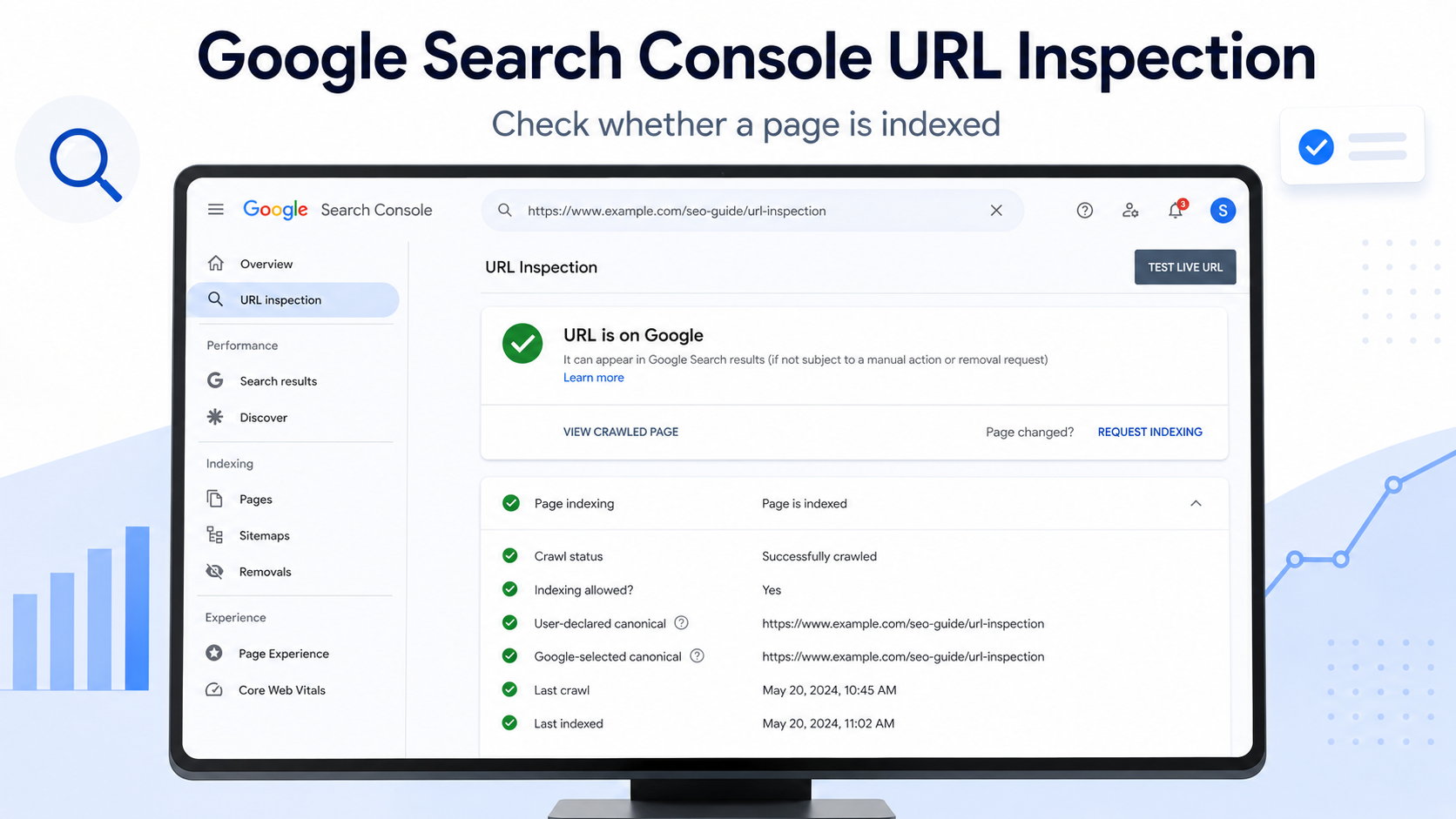
Do not stop at the top message. Check Page indexing, Last crawl, Crawled as, Crawl allowed?, Indexing allowed?, User-declared canonical, Google-selected canonical and Sitemaps.
Official reference: Google URL Inspection Tool documentation.
2. Search Console Page Indexing report
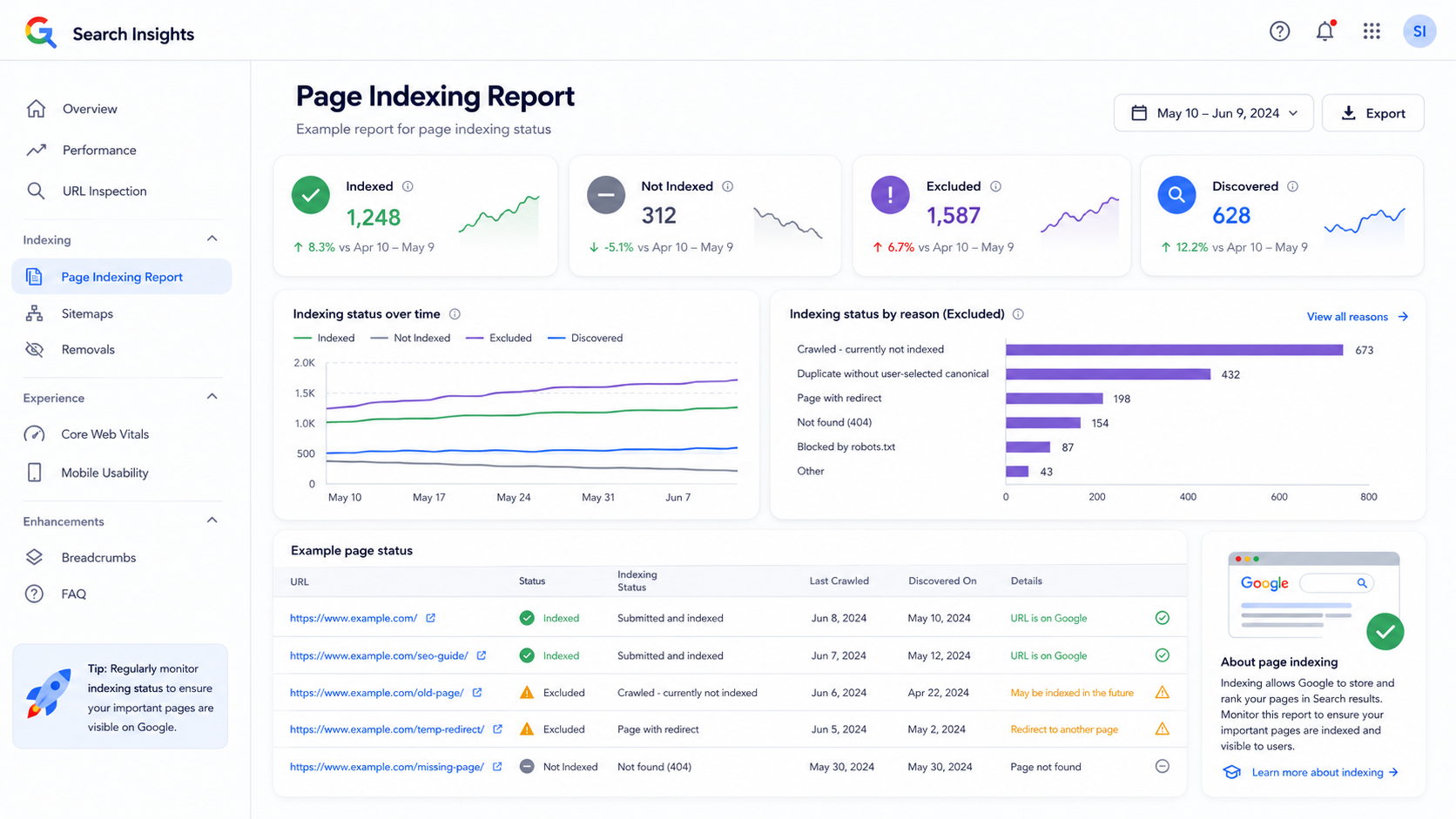
The Page Indexing report is better when you want to inspect many URLs. It shows the indexing status of URLs Google knows about in your property. Use this report to find patterns: pages indexed, pages excluded by noindex, pages blocked by robots.txt, duplicate pages, redirects, soft 404s, server errors and pages crawled but not indexed.
- Open Search Console.
- Choose the correct property.
- Go to Indexing → Pages.
- Review indexed and not indexed groups.
- Open issue types and inspect sample URLs.
- Compare affected URLs with your sitemap and important page lists.
- Fix the root cause before clicking validation or requesting indexing.
Official reference: Google Page Indexing report documentation.
3. Google site: search operator
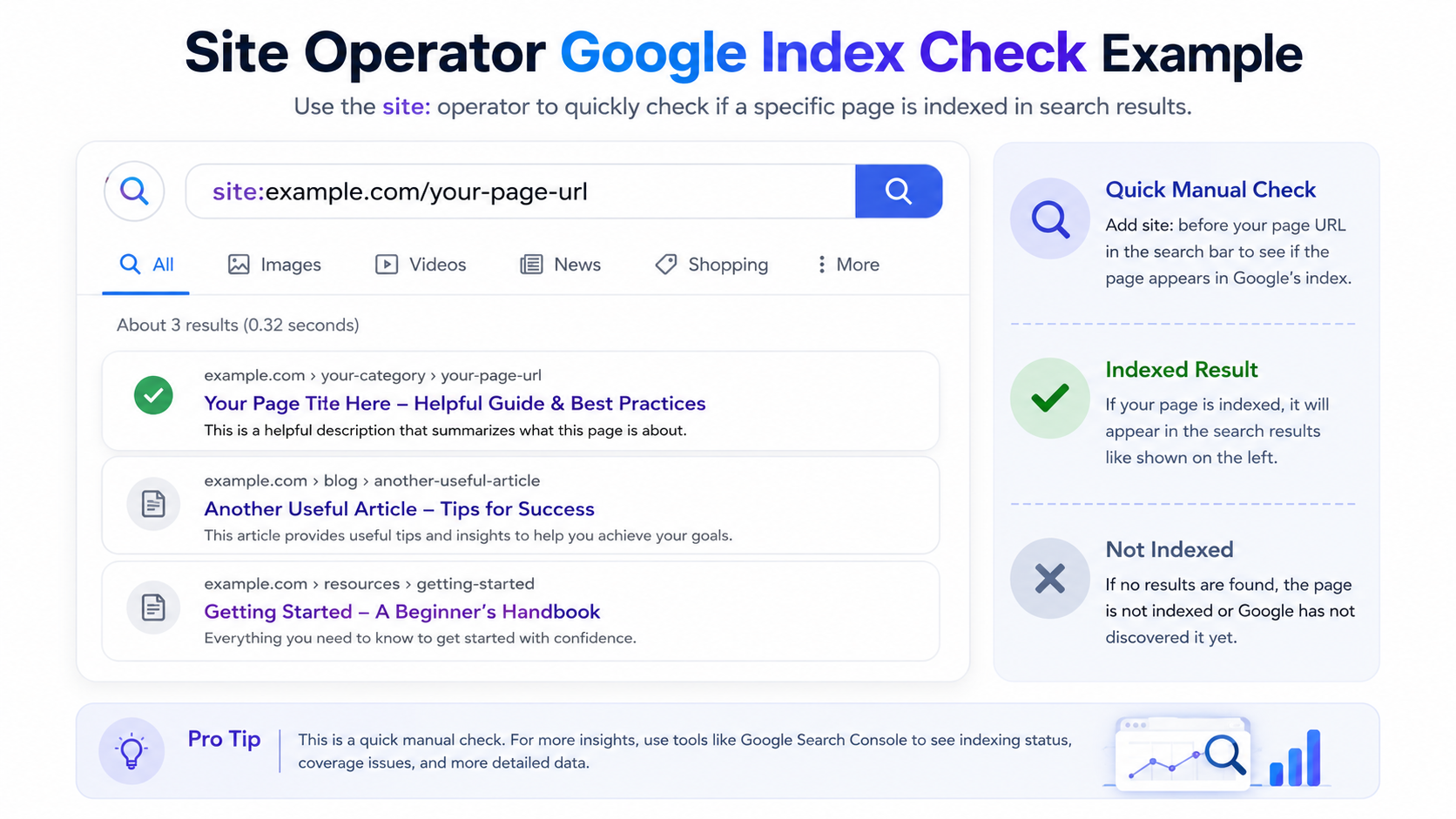
The site: operator is the fastest public method. It is useful when you do not have Search Console access or want quick confirmation from the live search interface.
site:example.com/example-page/
site:https://www.example.com/example-page/
site:example.com "unique phrase from the page"
If the exact page appears, it is likely indexed. If nothing appears, it does not always prove the page is not indexed. Search Console is still the better source for exact URL diagnosis.
Official reference: Google site: operator documentation.
4. Search the exact URL or a unique sentence
Search the exact URL in quotes or search a unique sentence from the page. This can reveal whether Google has indexed the page and associated it with unique content.
"https://www.example.com/example-page/"
"This exact sentence appears only on my page"
This method is helpful for pages where the title is too generic. For example, many websites may have a page titled “About Us”, but a unique sentence from your page is easier to identify.
5. Check organic landing page data
Analytics data cannot prove a page is indexed right now, but it can help confirm that a URL has received organic search traffic in the past. If a page has Google organic sessions, it was likely indexed at the time it received that traffic.
Use this as a supporting signal only. A page may have received organic traffic last month and then become noindexed, canonicalized, redirected or removed. Always confirm the current status with Search Console.
6. Use an SEO crawler to detect indexability problems
SEO crawlers do not tell you what Google indexed, but they quickly show technical issues that prevent indexing: noindex tags, robots blocks, broken canonicals, redirects, status errors, missing internal links and duplicated templates.
Run a crawl, export indexability fields, then compare those results with Search Console indexing statuses. This gives you a much stronger diagnosis than checking one URL manually.
7. Use a bulk index checker for large URL lists
Bulk index checkers are useful when you need to check hundreds or thousands of URLs, especially for large sites, backlinks, directory listings, expired domains, programmatic pages or sitemap audits.
Treat third-party index checkers as operational tools, not as Google’s official truth. Many tools check indexed status by automating search patterns. They are useful for speed, but important URLs should still be verified in Search Console.
Check the exact URL variant before making a decision
One common mistake is checking the wrong version of a URL. Google treats different URL variants as separate URLs unless they are redirected or canonicalized properly.
| Variant | Example | What to Check |
|---|---|---|
| HTTP vs HTTPS | http://example.com/page/ vs https://example.com/page/ | HTTPS should usually be canonical and indexable. |
| www vs non-www | www.example.com vs example.com | One version should redirect or canonicalize to the preferred version. |
| Trailing slash | /page vs /page/ | Use one consistent version. |
| Uppercase/lowercase | /Page/ vs /page/ | Use lowercase URLs where possible. |
| Parameters | ?utm_source=, ?sort=, ?page= | Do not let duplicate parameters become index bloat. |
| AMP/mobile versions | /amp/ or m.example.com | Confirm canonical points to the correct primary URL. |
In Search Console, inspect the exact URL you want indexed. Then compare the User-declared canonical and Google-selected canonical. If Google selected a different canonical, your target URL may not appear as the indexed version.
Old method warning: Google Cache is not a reliable indexing check
Older SEO guides often recommend searching with cache:your-url. This was once used to view Google’s cached copy of a page. Do not rely on it now. Google removed cache links from Search, so cache-based checks are outdated and should not be used as a primary indexing method.
cache:https://www.example.com/example-page/
For current indexing diagnosis, use Search Console URL Inspection, the Page Indexing report and site: searches. For historical snapshots, use external web archives, but do not treat archive copies as proof of current Google indexing.
Official reference: Google Search documentation updates.
Technical blocks that stop a page from being indexed
If a page is not indexed, do not repeatedly press “Request Indexing” without fixing the cause. Work through the technical stack in order: server response, robots rules, noindex directives, canonical signals, duplication, internal links and content quality.
1. robots.txt crawl blocks
Robots.txt controls crawling. If Google cannot crawl a page, it may not read the content, noindex tag or canonical tag. A blocked URL can still appear in Search in limited cases if Google discovers it from links, but it will not be a clean, content-rich indexed result.
User-agent: *
Disallow: /private/
Disallow: /temp/
Allow: /
Check your robots file here:
https://www.example.com/robots.txt
Use the Robots.txt Generator to create clean rules. If a page should rank, do not accidentally place it inside a disallowed folder.
Official reference: Google robots.txt guide.
2. meta robots noindex tags
A noindex tag tells Google not to index the page. It is commonly used on admin pages, filters, thin pages, staging pages or duplicate pages. Accidentally adding it to public SEO pages is a direct indexing blocker.
<meta name="robots" content="noindex">
<meta name="googlebot" content="noindex">
To check it manually, open the page, right-click, choose View Page Source and search for noindex. Also check rendered HTML because some frameworks insert meta tags dynamically.
Official reference: Google noindex documentation.
3. X-Robots-Tag noindex headers
Indexing directives can also be sent as HTTP headers. This is common for PDFs, images, documents, CDN rules or server-level configuration. A page may look indexable in source code but still send an X-Robots-Tag noindex header.
curl -I https://www.example.com/example-page/
Look for this response header:
X-Robots-Tag: noindex
If this header appears on a page you want indexed, remove the rule from your server, application, CDN, reverse proxy or hosting panel.
Official reference: Google robots meta and X-Robots-Tag documentation.
4. wrong canonical URL
Canonical tags help Google choose the preferred version of duplicate or similar pages. If a page canonicalizes to another URL, Google may index the other URL instead of your target page.
<link rel="canonical" href="https://www.example.com/preferred-page/">
For unique SEO pages, use a self-referencing canonical unless you intentionally want another URL to be selected. Check both the HTML canonical and the Google-selected canonical in Search Console.
Official reference: Google canonical URL documentation.
5. HTTP status code problems
A page you want indexed should normally return 200 OK. Google may not index URLs returning 404, 410, 500, blocked responses, redirect loops or soft 404 content.
| Status | Meaning | Indexing Impact |
|---|---|---|
| 200 OK | The page loads normally. | Good for indexing if the content has value. |
| 301/308 | Permanent redirect. | Google usually indexes the destination URL. |
| 302/307 | Temporary redirect. | Can create confusion if used permanently. |
| 404 | Not found. | Usually not indexed or removed over time. |
| 410 | Gone. | Clear removal signal. |
| 500/503 | Server error or unavailable. | Can block crawling and indexing if persistent. |
6. JavaScript rendering problems
If key content, links, canonical tags or robots meta tags depend on JavaScript, Google may not see the page exactly as users see it. Use URL Inspection’s rendered page view, a crawler with JavaScript rendering and browser developer tools to confirm that important content is available.
A strong SEO page should expose the main content, canonical, title, description, internal links and structured data in a reliable way. Avoid inserting or removing noindex with JavaScript.
Official reference: Google JavaScript SEO basics.
7. thin or duplicate content
Google can crawl a page and still choose not to index it. This often happens when the page has very little original value, duplicated text, boilerplate templates, low-quality AI content, doorway patterns, empty category pages or weak internal linking.
Improve the page with original explanations, examples, screenshots, data tables, expert notes, FAQs, internal links and useful tools. You can audit content and metadata with the On-Page SEO Checker and create clean metadata with the Meta Tags Generator.
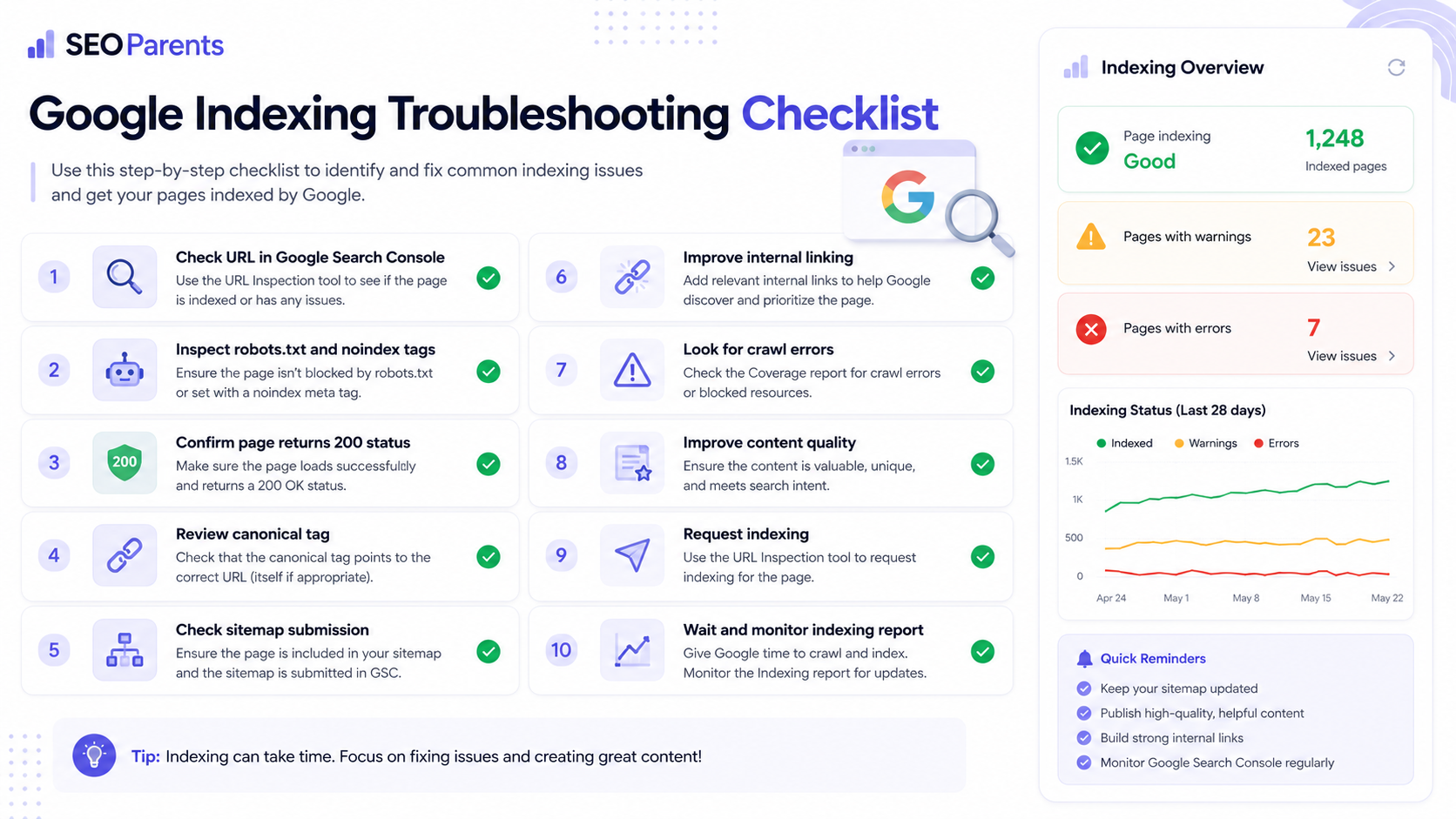
Common Search Console indexing statuses explained
Search Console uses specific labels to explain why URLs are indexed or excluded. Understanding these messages helps you fix the real issue instead of guessing.
| Status | Meaning | Recommended Action |
|---|---|---|
| URL is on Google | The URL is indexed and eligible for search results. | Improve rankings with content, links and CTR optimization. |
| URL is not on Google | The inspected URL is not indexed. | Open Page indexing details and fix the specific cause. |
| Discovered - currently not indexed | Google knows the URL but has not crawled it yet. | Improve internal links, sitemap quality and crawl efficiency. |
| Crawled - currently not indexed | Google crawled the URL but did not add it to the index. | Improve uniqueness, depth, quality, internal links and canonical clarity. |
| Excluded by noindex tag | A noindex directive is blocking indexing. | Remove noindex if the page should rank. |
| Blocked by robots.txt | Google is not allowed to crawl the URL. | Remove unwanted Disallow rules. |
| Alternate page with proper canonical tag | Google selected another canonical URL. | No action if intentional. Fix canonical if wrong. |
| Duplicate without user-selected canonical | Google found duplicates and chose a canonical itself. | Add clear canonical tags and internal link consistency. |
| Page with redirect | The inspected URL redirects elsewhere. | Inspect the final destination URL. |
| Soft 404 | The page looks like an error page despite returning 200 OK. | Add real content or return proper 404/410 if gone. |
How to submit a page to Google for indexing
Submission helps only after the page is crawlable, indexable and valuable. If the page has a noindex tag, wrong canonical, server error or thin content, submitting it again will not solve the root problem.
Request indexing in URL Inspection
- Inspect the exact URL in Search Console.
- Click Test Live URL.
- Confirm the live test says the URL can be indexed.
- Fix any crawl, robots, noindex, canonical or server issues.
- Click Request Indexing.
- Wait for Google to crawl and process the page.
Do not spam request indexing repeatedly. Use it for important pages after real changes, not as a substitute for proper site architecture.
Submit a clean XML sitemap
A sitemap tells Google which URLs you consider important. Submit it in Search Console under Sitemaps. Include only canonical, indexable URLs returning 200 OK.
https://www.example.com/sitemap.xml
Use the Sitemap Generator to create a clean sitemap and update it when important pages are added or removed.
Add internal links from relevant pages
Internal links are one of the most practical ways to help Google discover and evaluate a page. Add contextual links from related blog posts, category pages, resource pages, navigation sections and high-authority internal pages.
Update the page after meaningful improvements
If a page is stuck in “Crawled - currently not indexed,” add real value before submitting again. Improve the answer, add examples, remove duplication, include original data, add screenshots, expand FAQs and strengthen internal links.
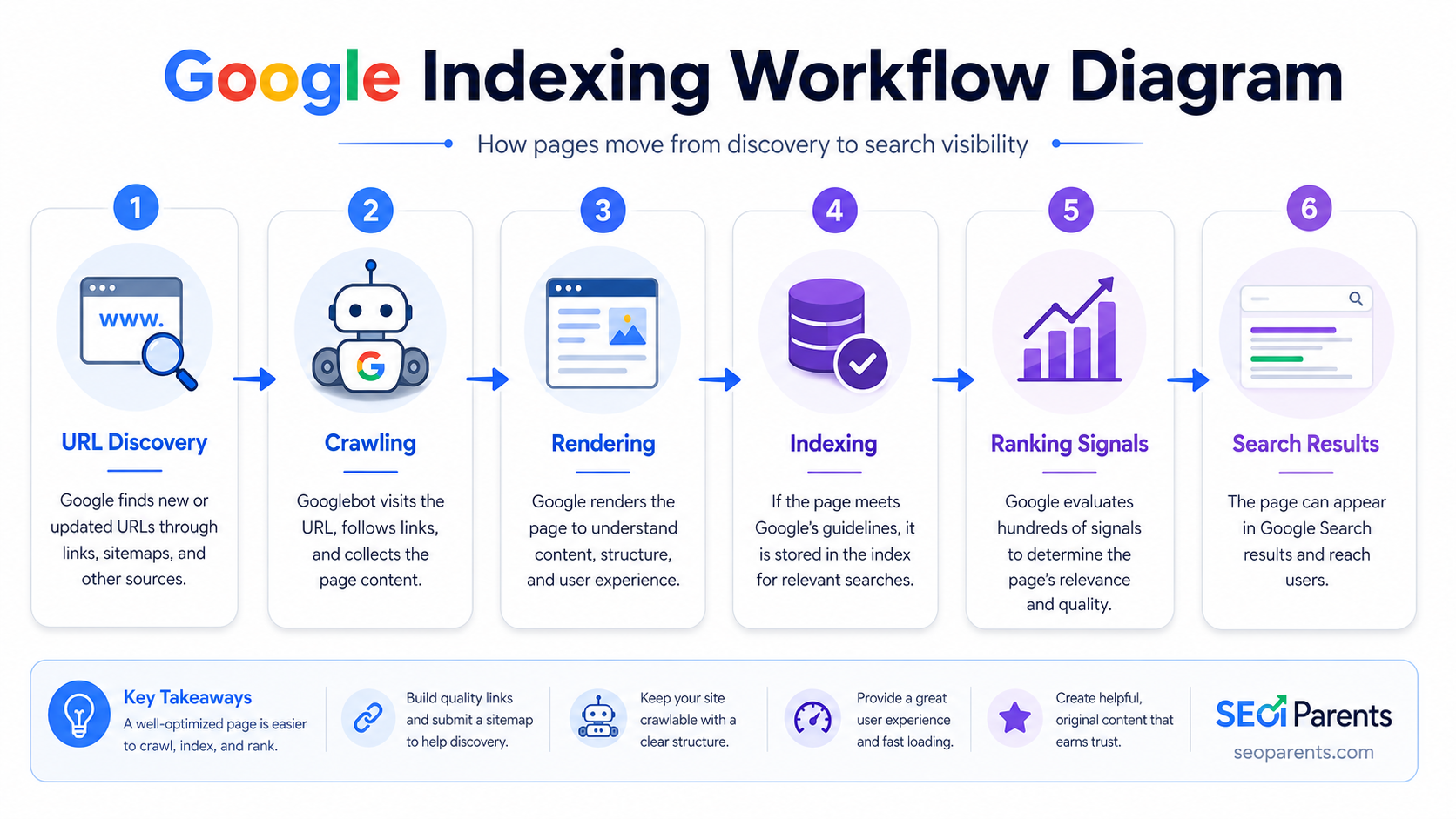
Bulk index checking for large websites
For large sites, checking URLs one by one is not scalable. Use a structured workflow so you can find patterns and prioritize fixes.
- Export important URLs from your sitemap, CMS, database, analytics or crawler.
- Remove duplicates, parameters and non-canonical versions.
- Group URLs by template type: blog, product, category, directory, tag, profile or landing page.
- Compare URL groups with Search Console Page Indexing data.
- Crawl the URLs to collect status code, canonical, noindex, robots and word count data.
- Use a bulk index checker for fast operational checks.
- Manually verify high-value URLs in Search Console.
- Prioritize fixes by revenue, traffic potential, backlinks and internal importance.
| Data Source | What It Tells You | Limitation |
|---|---|---|
| Search Console | Google’s own indexing and crawl status. | Requires property access and sampling can occur. |
| Sitemap | Your intended canonical URL list. | Does not prove Google indexed the URLs. |
| SEO crawler | Technical indexability and internal link data. | Does not represent Google’s final index decision. |
| Bulk index checker | Fast indexed/not indexed checks at scale. | Accuracy depends on the tool’s method. |
| Server logs | Whether Googlebot requested URLs. | Crawled does not always mean indexed. |
Server log analysis for advanced SEO
Server logs show whether Googlebot is actually requesting your pages. This is useful when diagnosing “Discovered - currently not indexed,” crawl budget waste, blocked resources, redirect chains and large-scale programmatic pages.
If Googlebot frequently crawls a URL but Google refuses to index it, the problem is often not discovery. It is more likely content quality, duplication, canonical selection, page value or site-level quality.
Google Indexing API limitation
The Google Indexing API is not a general indexing shortcut for normal blog posts, service pages, directory pages, ecommerce pages or backlink pages. Google limits the Indexing API to specific supported page types such as JobPosting and livestream video pages with BroadcastEvent markup.
Official reference: Google Indexing API quickstart.
US, Canada and Australia checks
Indexing itself is not usually country-specific: a page is either indexed or not indexed. However, public search checks can differ by location, language, personalization and Google domain.
google.com      - United States checks
google.ca       - Canada checks
google.com.au   - Australia checks
For SEO reporting, use Search Console as the primary indexing source and use country-specific Google domains only for public visibility checks. A page may be indexed globally but rank differently in the United States, Canada and Australia.
Practical indexing checklist
- Inspect the exact URL in Google Search Console.
- Confirm the correct property: domain property or exact URL-prefix property.
- Check HTTP vs HTTPS, www vs non-www, trailing slash and parameter variants.
- Run a live URL test.
- Confirm the page returns HTTP 200 OK.
- Confirm the page is not blocked by robots.txt.
- Confirm there is no meta robots noindex tag.
- Confirm there is no X-Robots-Tag noindex HTTP header.
- Confirm the canonical tag points to the correct preferred URL.
- Compare user-declared canonical and Google-selected canonical.
- Confirm the URL is included in a clean sitemap if it is important.
- Add internal links from relevant indexed pages.
- Improve thin, duplicate or low-value content.
- Add helpful images, screenshots, examples and FAQs.
- Use structured data where relevant and validate it.
- Request indexing only after fixing real issues.
- Monitor the URL again after Google recrawls it.
Correct setup example for an indexable page
A clean indexable page should have a valid title, unique description, self-canonical URL, indexable robots directive, clean status code, internal links and useful content.
<title>Example Page Title</title>
<meta name="description" content="Clear and useful page summary.">
<meta name="robots" content="index, follow">
<link rel="canonical" href="https://www.example.com/example-page/">
Validate metadata with the Meta Tags Generator, test structured data with the Schema Markup Checker, and audit page quality with the On-Page SEO Checker.
Common mistakes to avoid
- Checking only the homepage and assuming all pages are indexed.
- Using site: as the final source of truth instead of Search Console.
- Inspecting the wrong URL variant.
- Requesting indexing before removing noindex or robots blocks.
- Ignoring Google-selected canonical data.
- Submitting URLs that redirect, return 404 or contain duplicate content.
- Adding every parameter URL to the sitemap.
- Creating thousands of thin programmatic pages and expecting all of them to index.
- Blocking a page in robots.txt while also trying to use noindex.
- Assuming indexed means ranking.
FAQ
How can I tell if Google indexed my page?
Use Google Search Console URL Inspection. Paste the exact URL. If it says “URL is on Google,” the page is indexed. You can also use site:yourdomain.com/page-url/ as a quick public check, but Search Console is more reliable.
What does “URL is on Google” mean?
It means Google has indexed the URL and the page is eligible to appear in Google Search results. It does not guarantee rankings, traffic or first-page visibility.
What does “URL is not on Google” mean?
It means the inspected URL is not indexed. The reason may be technical, canonical, quality-related or discovery-related. Open the Page indexing details in Search Console to identify the exact cause.
Does the site: operator always show indexed pages accurately?
No. The site: operator is helpful for quick checks, but it is not a complete index report. Use Search Console for authoritative URL diagnosis.
How long does Google indexing take?
It can take hours, days or longer. Faster indexing usually happens when the site is healthy, internally linked, frequently crawled, technically clean and trusted. Weak or duplicate pages may never be indexed.
What does “Discovered - currently not indexed” mean?
It means Google knows the URL exists but has not crawled it yet. Improve internal linking, make sure the URL is in the sitemap, avoid crawl traps and ensure your server responds quickly.
What does “Crawled - currently not indexed” mean?
It means Google crawled the page but did not index it. Improve originality, content depth, internal links, canonical clarity and overall page value before requesting indexing again.
Can robots.txt prevent indexing?
Robots.txt blocks crawling, not indexing directly. A blocked URL can still appear in Search if Google discovers it from links, but Google may not read the content. Use noindex on crawlable pages when you intentionally want to prevent indexing.
Can a noindex tag stop Google from indexing a page?
Yes. A meta robots noindex tag or an X-Robots-Tag noindex header can stop Google from indexing a page if Google can crawl the page and see the directive.
Can a wrong canonical URL stop my target page from indexing?
Yes. If your page canonicalizes to another URL, Google may index the canonical target instead. Check user-declared canonical and Google-selected canonical in Search Console.
Can Google Cache be used to check indexing?
No. Google removed cache links from Search, so cache-based checks are outdated. Use Search Console URL Inspection, Page Indexing report and site: searches instead.
Can Google index pages not listed in my sitemap?
Yes. Google can discover pages through internal links, external links and other discovery paths. A sitemap helps discovery, but it is not the only way Google finds URLs.
Should every indexed page be in my sitemap?
Important canonical pages should usually be in your sitemap. Do not include redirected URLs, noindex URLs, duplicate parameter URLs, soft 404 pages or low-value pages.
How do I index many pages at once?
Submit a clean XML sitemap, strengthen internal links, remove crawl blocks, improve page quality and use Search Console to monitor indexed and excluded groups. Bulk tools can help check status, but they do not replace Google’s own data.
Can I use the Google Indexing API for blog pages?
No. Google limits the Indexing API to specific supported content types such as JobPosting and livestream video pages with BroadcastEvent markup. Normal blog pages should rely on sitemaps, internal links, technical SEO and Search Console.
Why is my page indexed but not getting traffic?
Indexing only makes the page eligible to appear in search. To get traffic, the page must rank for queries with search demand. Improve keyword targeting, content quality, internal links, backlinks, page speed, title CTR and user intent alignment.
Can a page be indexed today and removed later?
Yes. Google can drop pages from the index if they become unavailable, noindexed, canonicalized elsewhere, low quality, duplicated or blocked. Monitor important URLs regularly.
What is the fastest safe indexing method?
Publish a useful crawlable page, link to it internally, include it in your sitemap, inspect it in Search Console, run a live test and request indexing. Avoid fake indexing shortcuts that do not fix technical or quality problems.
Check your page before requesting indexing
Use SEOParents tools to review metadata, robots rules, schema, sitemap signals and on-page SEO issues before you submit pages to Google.