Quick answer: how to fix Crawled - currently not indexed
To fix “Crawled - currently not indexed,” first confirm that the page is technically indexable, then improve the page value. Start with Google Search Console URL Inspection, compare the indexed result with the live test, check the HTTP status code, robots.txt, noindex, canonical tag, rendered HTML, mobile content, sitemap inclusion and internal links. After you fix the real issue, request indexing only for important URLs.
The most common mistake is repeatedly clicking Request Indexing without changing the page. If Google already crawled the URL and did not index it, the page usually needs a stronger reason to be indexed.
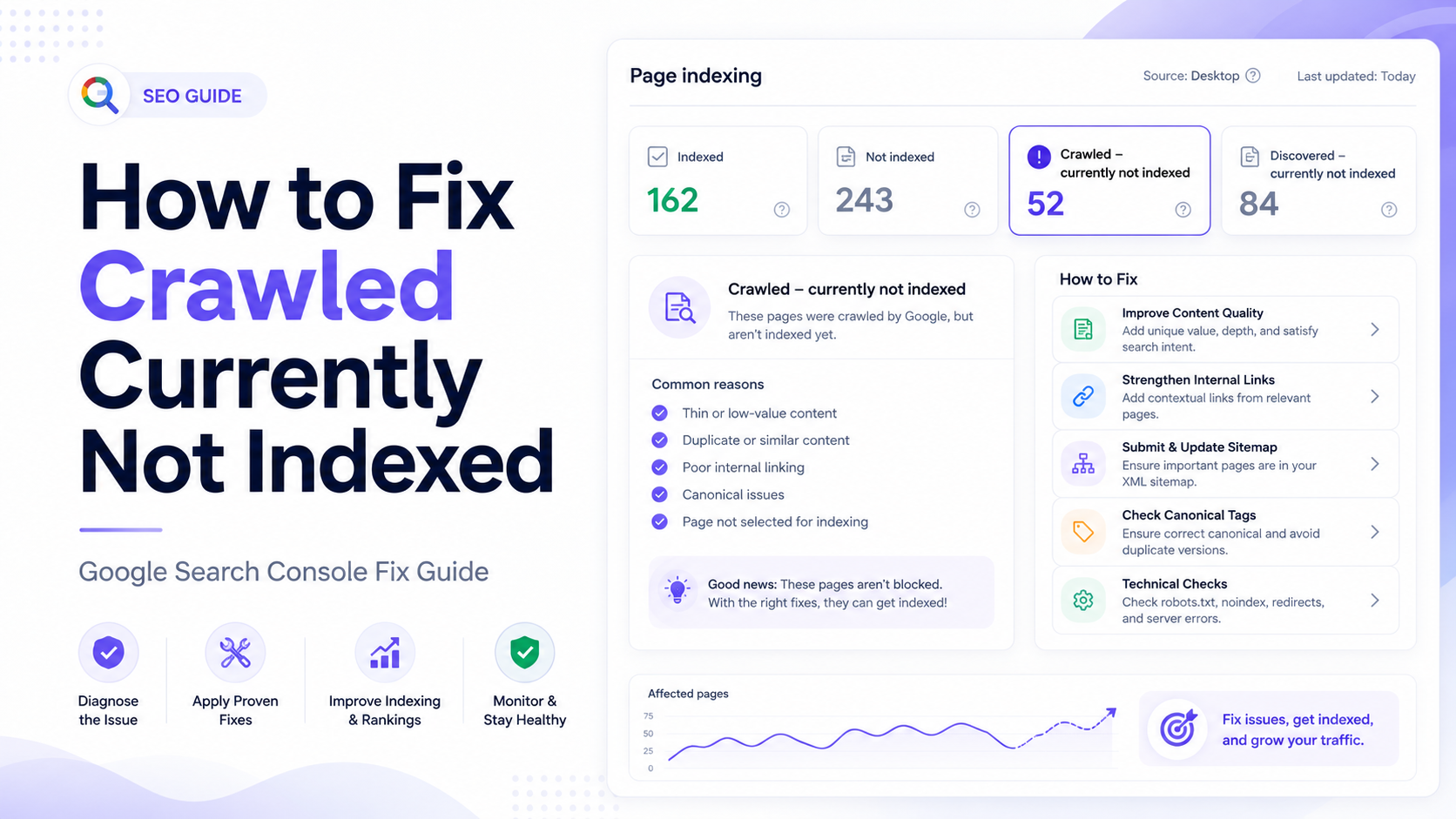
What does Crawled - currently not indexed mean?
“Crawled - currently not indexed” is a Google Search Console page indexing status. It means Googlebot successfully fetched the URL, but Google has not added that page to the index at the time of reporting.
This is different from “Discovered - currently not indexed.” Discovered means Google knows the URL exists but has not crawled it yet. Crawled means Google already visited the page, processed enough of it to classify it, and still decided not to index it.
In practical SEO terms, this page cannot rank normally until Google indexes it. The URL may exist on your website, may load for users, and may even be present in your sitemap, but if it is not indexed, it will not bring organic search traffic from normal Google results.
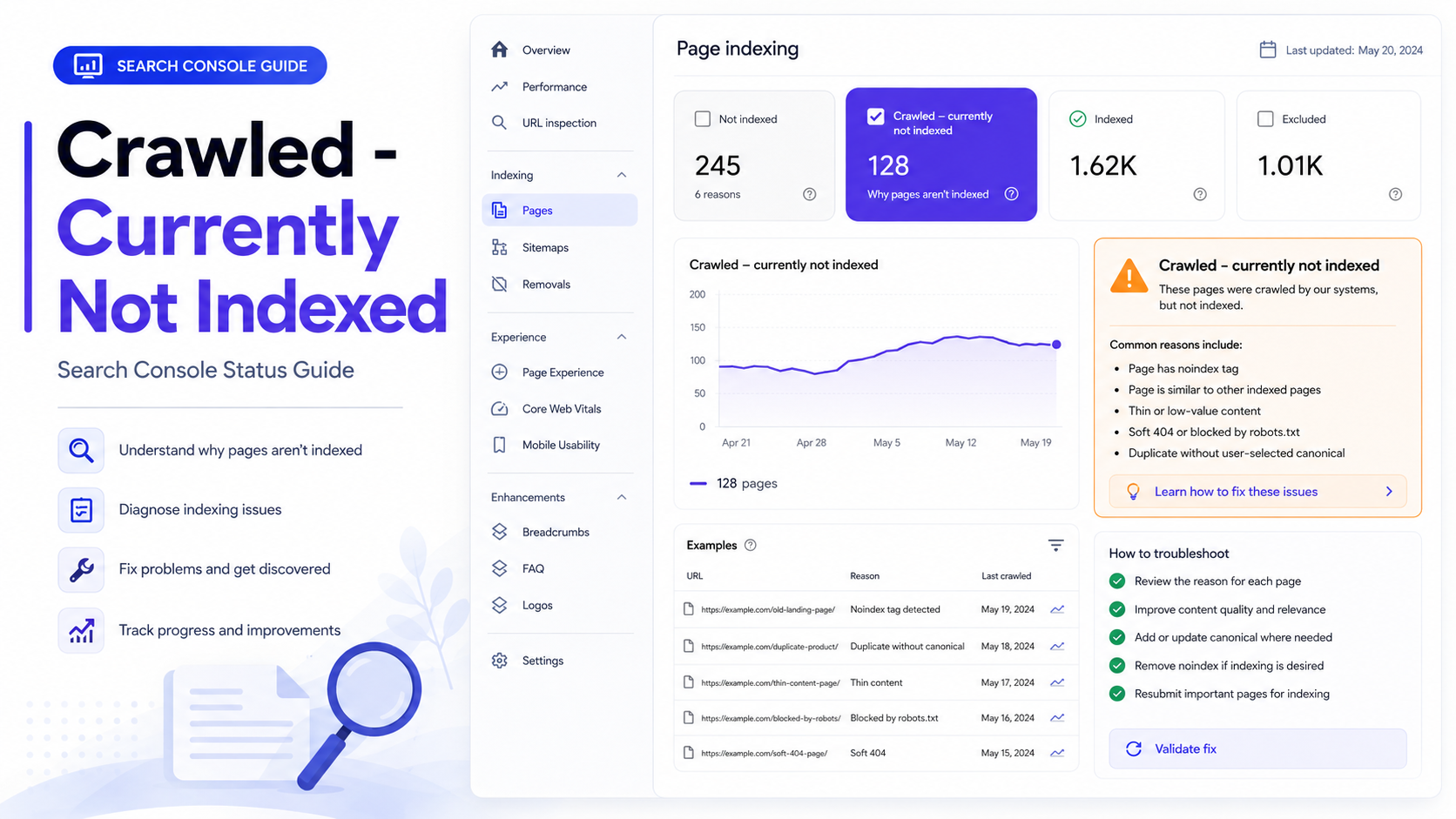
Crawled vs discovered vs indexed vs ranked
Indexing problems become easier to solve when you separate the stages. A URL can be discovered, crawled, indexed and ranked. These stages are connected, but they are not the same.
| State | Meaning | SEO Action |
|---|---|---|
| Discovered | Google knows the URL exists from a link, sitemap or other source. | Improve crawl priority using internal links, sitemap cleanup and faster server responses. |
| Crawled | Googlebot fetched the URL and saw the page. | Check indexability, page value, canonical signals and rendered content. |
| Crawled - currently not indexed | Google crawled the page but did not include it in the index. | Improve uniqueness, quality, internal links, canonicals and technical clarity. |
| Indexed | Google stored the page in its index. | Now optimize ranking, CTR, content depth and backlinks. |
| Ranked | The page earns impressions for real search queries. | Improve relevance, authority, title, meta description and content coverage. |
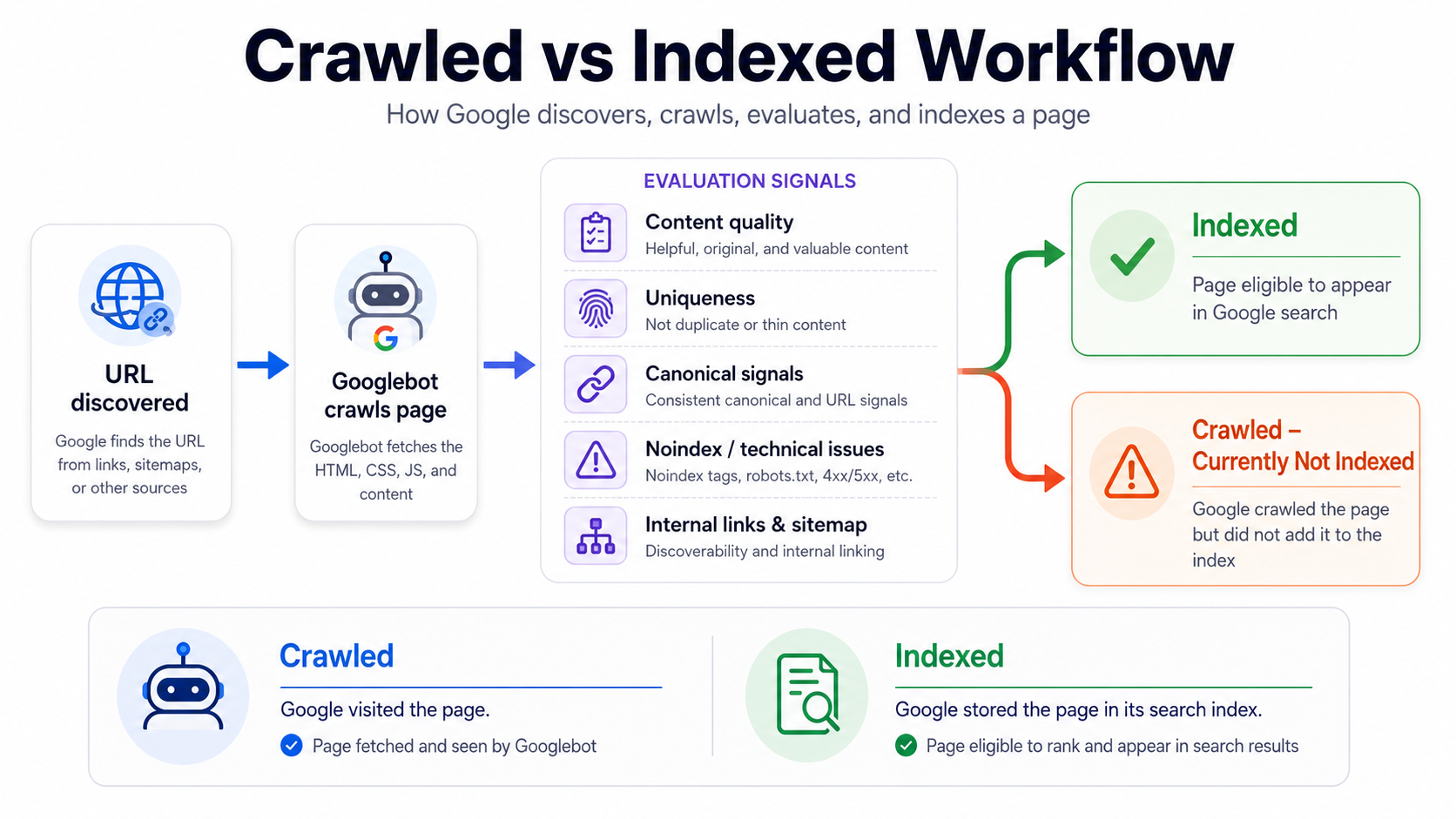
Main reasons Google crawls a page but does not index it
There is rarely one universal cause. For most websites, this issue appears because Google does not see enough reason to store the URL as a useful search result. The page may be thin, duplicated, poorly linked, canonicalized incorrectly, or different when rendered by Googlebot.
Low Value
The page is too thin, generic, duplicated or not useful enough.
Weak Signals
The page has few internal links, weak sitemap signals or poor site structure.
Technical Confusion
Canonical, robots, noindex, rendering or status-code signals may be unclear.
1. Thin or low-value content
This is one of the most common reasons. If a page has very little original information, copied manufacturer text, weak descriptions, empty category content, AI-generated filler, doorway-style content or no real search intent match, Google may crawl it and still decide not to index it.
A page should answer a real user need better than other available results. Add original examples, screenshots, practical steps, FAQs, data, comparisons, checklists and clear explanations.
2. Duplicate or near-duplicate content
If your URL is almost the same as another page, Google may cluster it with the other version and index only the selected canonical. This often happens with filtered category pages, tag pages, parameter URLs, duplicate articles, copied city pages, product variants and template-generated pages.
3. Wrong canonical tag
A canonical tag tells Google which URL is the preferred version. If the canonical points somewhere else, Google may leave your current URL out of the index.
<link rel="canonical" href="https://www.example.com/preferred-page/">
For a unique page that should be indexed, the canonical should usually point to itself.
4. Weak internal linking
If a page only appears in a sitemap but has no meaningful internal links, Google may treat it as less important. Important pages should be linked from relevant pages, category hubs, navigation blocks, related article sections or content clusters.
5. Rendering or mobile mismatch
Google needs to understand the rendered page. If your main content appears only after broken JavaScript, is hidden from mobile, blocked by scripts, or missing from rendered HTML, the page may look weaker to Google than it looks to you.
6. Soft 404 or poor page purpose
A page can technically return HTTP 200 but still behave like an empty or missing page. Examples include empty search results, expired listings, out-of-stock products with no useful alternatives, placeholder pages and pages with almost no primary content.
Step-by-step diagnostic workflow
Do not start with all URLs at once. Pick one high-value affected URL first. Fixing one representative URL properly helps you find the pattern affecting many similar pages.
Step 1: Inspect the URL in Google Search Console
- Open Google Search Console.
- Paste the exact URL into URL Inspection.
- Check the indexing status.
- Check the last crawl date.
- Check page fetch status.
- Check user-declared canonical and Google-selected canonical.
- Check whether the URL is listed in a sitemap.
- Check referring pages if available.
Step 2: Test the live URL
Click “Test Live URL” in Search Console. This checks the current version of the page. A URL may have been crawled before, but your current live page may already be fixed or may have a new issue.
Step 3: Compare indexed result and live result
If the live URL is clean but the indexed result still shows the issue, Google may need time to recrawl. If the live test still shows blocked, noindex, canonical conflict or fetch errors, fix those first.
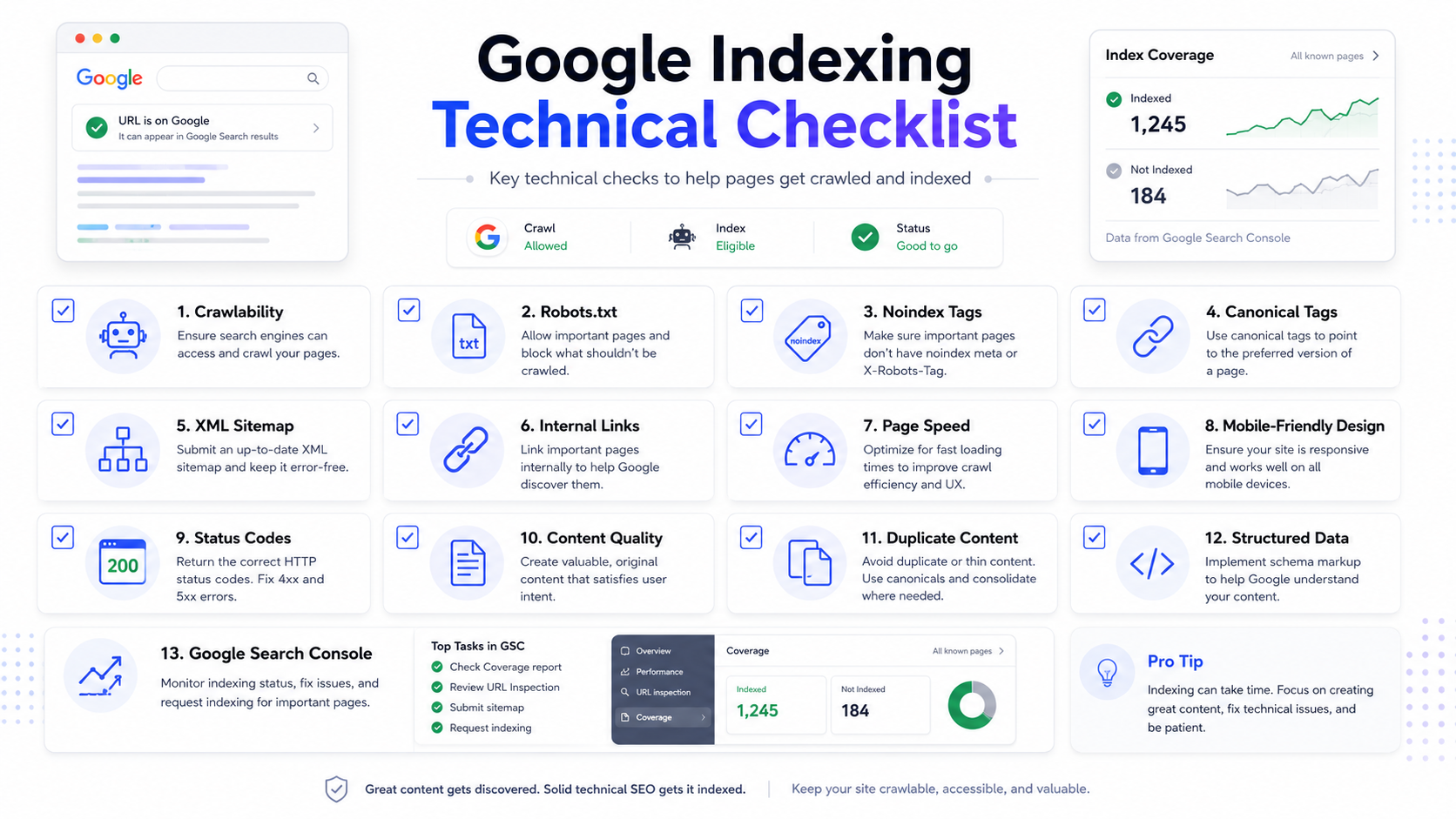
Technical checks to perform before content changes
Before rewriting the page, confirm that nothing technical is blocking indexing. A technically confused page can waste weeks even if the content is strong.
Check HTTP status code
The page should return HTTP 200 if you want it indexed. Redirects, 404s, soft 404s, server errors and blocked responses can prevent proper indexing.
curl -I https://www.example.com/page-url/
Check robots.txt
Open your robots.txt file and make sure the page or folder is not blocked.
https://www.example.com/robots.txt
If you need clean robots rules, use the Robots.txt Generator.
Check meta robots and X-Robots-Tag
Search the page source for noindex. Also check response headers for X-Robots-Tag.
<meta name="robots" content="noindex">
If the page should appear in Google, remove noindex and retest the live URL.
Check canonical URL
Make sure the page canonical points to the correct preferred URL. If the canonical points to another page, Google may index that other page instead.
Check rendered HTML
Use Search Console live test, browser developer tools or a render-aware crawler. Confirm that Google can see the title, main content, links, images, structured data and important text.
Content fixes that actually help indexing
If technical checks are clean, the next problem is usually value. Google crawled the page but did not think it deserved index inclusion yet. Improve the page until it clearly provides something useful and unique.
Make the page more complete
- Add a clear answer near the top.
- Cover the main topic in depth.
- Add original examples, not generic filler.
- Add comparison tables where useful.
- Add screenshots, diagrams and process images.
- Add FAQs that answer real user questions.
- Remove copied or boilerplate text.
- Improve headings so the page is easy to scan.
Match search intent
A page may be crawled but not indexed if it does not satisfy a clear purpose. For example, a guide should teach, a category page should help users choose, a product page should provide enough purchase information, and a directory page should help users compare options.
Remove thin duplicated pages
Not every URL should be indexed. If hundreds of pages are nearly identical, decide which pages deserve unique content and which should be canonicalized, redirected or removed.
Use the On-Page SEO Checker to review page structure, headings and basic SEO signals before requesting indexing again.
Fix internal links and orphan-page problems
Internal links are not only for users. They also help search engines discover pages, understand topical relationships and estimate importance. A page buried deep inside your site, linked only from a sitemap, may look less important.
Where to add internal links
- Relevant older blog posts
- Category pages
- Homepage sections
- Resource hubs
- Related article boxes
- Footer tool lists
- Navigation where appropriate
Use descriptive anchor text. Avoid vague anchors like “click here.” For example, link with text like “fix crawled currently not indexed” or “Google indexing checklist.”
Update sitemap and request indexing
After fixing content, canonicals, internal links and technical issues, update your XML sitemap. The sitemap should include only canonical, indexable, useful URLs.
You can create or refresh your sitemap with the Sitemap Generator.
Clean sitemap rules
- Include only URLs that return 200 OK.
- Do not include noindex URLs.
- Do not include blocked URLs.
- Do not include redirected URLs.
- Do not include duplicate or parameter clutter.
- Use accurate last modified dates where possible.
When to request indexing
Request indexing after a real fix. Good examples include: you expanded thin content, fixed canonical errors, removed noindex, improved internal links, fixed rendering, corrected mobile content, updated sitemap and verified live URL availability.
Bulk workflow for many Crawled - currently not indexed URLs
If only one page is affected, fix that page. If hundreds or thousands of URLs are affected, treat it as a pattern problem. Group URLs by template, folder, page type, content source and issue.
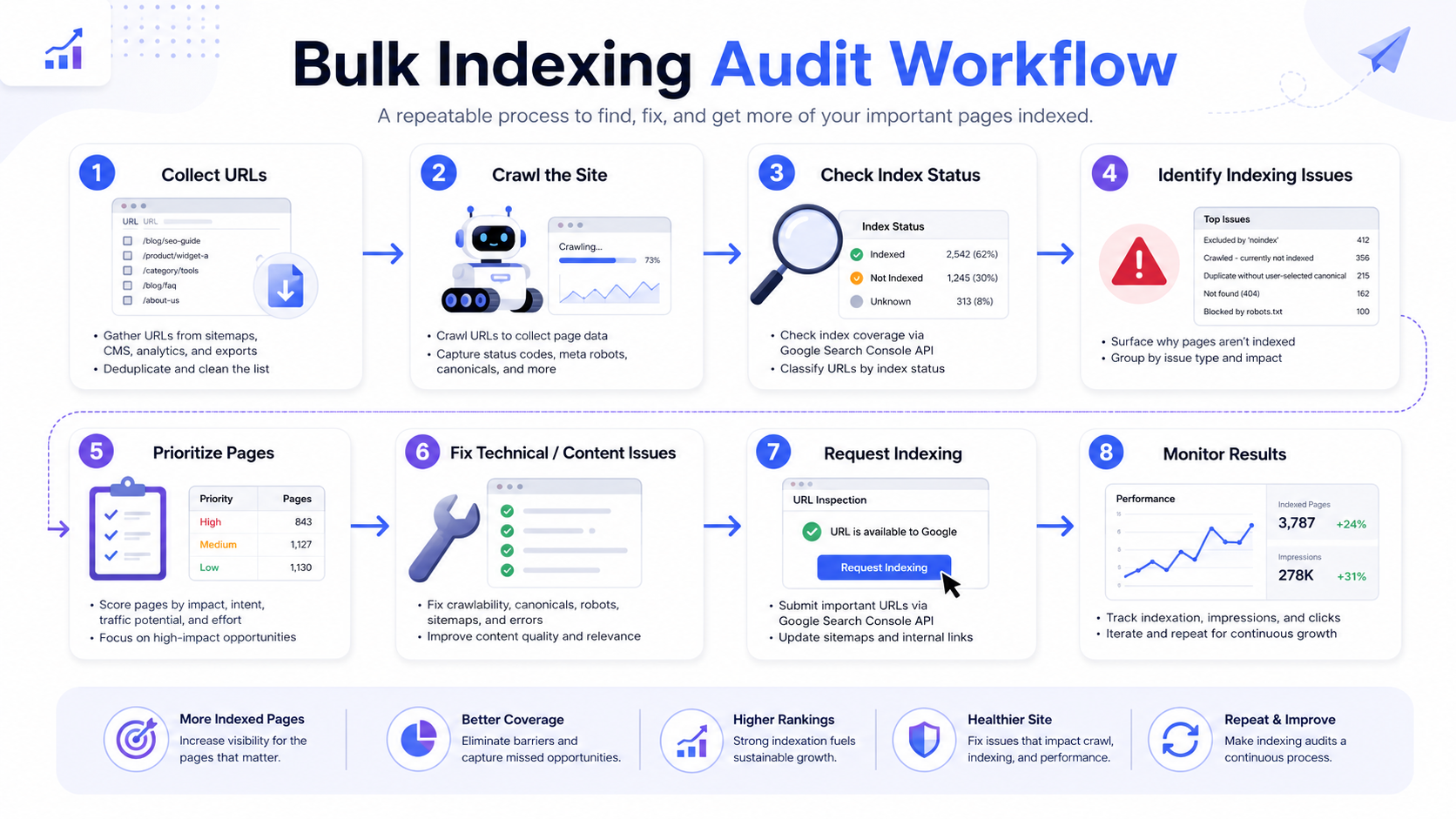
Bulk audit fields to collect
| Field | Why It Matters |
|---|---|
| URL | The exact page affected by the issue. |
| Template | Helps identify whether the issue is page-specific or template-wide. |
| In sitemap | Shows whether the page is being submitted as important. |
| Status code | Confirms whether the page returns 200, redirect, 404 or error. |
| Canonical | Shows whether another URL is preferred. |
| Internal links | Helps identify orphan or weakly linked pages. |
| Content depth | Helps identify thin or duplicate pages. |
| Action | Fix, improve, canonicalize, redirect, noindex or remove. |
Common mistakes to avoid
- Requesting indexing repeatedly without changing anything.
- Trying to index every low-value URL on a large website.
- Ignoring canonical conflicts.
- Submitting dirty sitemaps with redirects, 404s and noindex pages.
- Blocking a page in robots.txt and expecting Google to see noindex.
- Relying only on the site: operator instead of Search Console.
- Publishing many thin pages instead of fewer stronger pages.
- Forgetting mobile content and rendered HTML checks.
Final Crawled - currently not indexed checklist
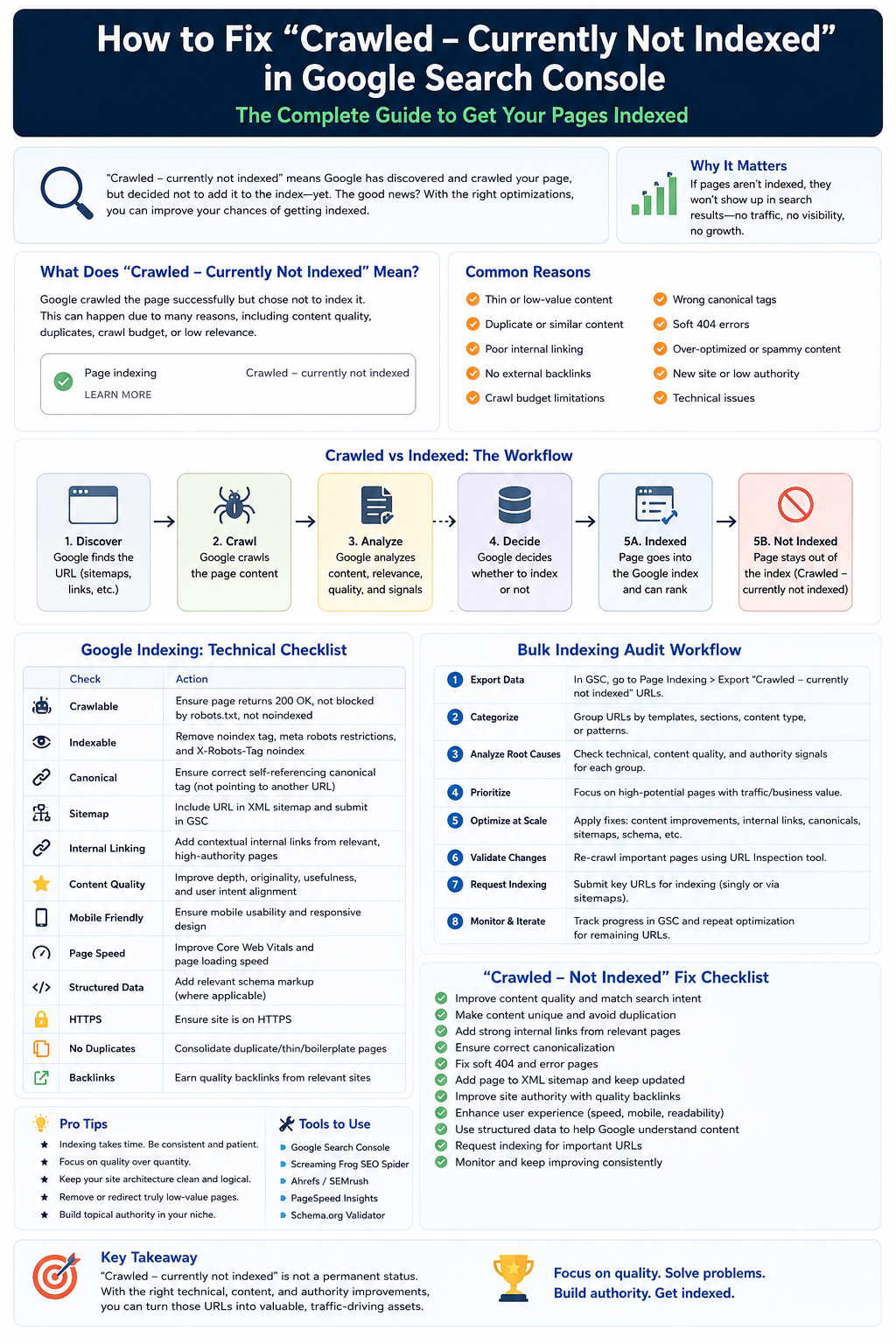
| Check | Correct Result |
|---|---|
| HTTP status | Page returns 200 OK. |
| Robots.txt | Googlebot is allowed to crawl the page. |
| Noindex | No meta robots or X-Robots noindex exists. |
| Canonical | Canonical points to the correct preferred URL. |
| Content quality | Page is useful, original and satisfies intent. |
| Internal links | Page has relevant crawlable links from important pages. |
| Mobile content | Mobile page contains the same primary content. |
| Sitemap | URL is included only if it is canonical and indexable. |
| Request indexing | Requested only after meaningful fixes. |
FAQ
What does Crawled - currently not indexed mean?
It means Googlebot visited the URL, but Google has not added it to the index. The page is crawled, but not eligible to appear in normal organic search results until indexed.
Is Crawled - currently not indexed bad?
It is a problem if the page is important and should get organic traffic. It is not a problem for duplicate, filtered, low-value or intentionally excluded URLs.
How do I fix Crawled - currently not indexed?
Verify the page is technically indexable, fix canonical and robots issues, improve content quality, add internal links, update the sitemap and request indexing after the fix.
Can thin content cause Crawled - currently not indexed?
Yes. Thin, generic or duplicated content is one of the most common reasons Google crawls a page but does not index it.
Can canonical tags cause this issue?
Yes. If the canonical points to another URL, Google may index the other page instead and leave the inspected URL out of the index.
Should I remove pages that are Crawled - currently not indexed?
Remove or redirect them only if they have no value. If they are important, improve them. If they are duplicates, canonicalize or consolidate them.
How long does it take for Google to index after fixing?
It can take days or weeks. The timing depends on crawl frequency, site quality, internal links and how important Google considers the URL.
Does sitemap submission fix Crawled - currently not indexed?
Sitemap submission helps discovery, but it does not guarantee indexing. The page still needs to be useful, crawlable and technically clear.
Conclusion
“Crawled - currently not indexed” is not solved by one button. It is solved by proving that the page deserves index inclusion. Start with Search Console URL Inspection, check the live URL, rule out technical problems, improve content quality, strengthen internal links, clean your sitemap and request indexing only after a real improvement.
The correct mindset is simple: make the page crawlable, make it indexable, make it useful, make it internally connected, and then ask Google to recrawl it. That gives the page the best chance of moving from crawled to indexed and eventually from indexed to ranked.
Fix indexing problems faster
Use SEOParents tools to generate clean sitemaps, build robots.txt rules, check on-page SEO and improve technical crawlability.